wx_TOOLS macro package

The package of versatile handy tools I use currently to slipstream my workflow.

  • wx.PClipPick - pick a powerclipped shape(s) without entering powerclip editing mode. Works with keyboard assignment only: for example "W" and "Shift-W" (to add to selection). Repeat the macro to pick nested shapes.
  • wx.InvertSelection - invert shapes selection
  • wx.ZoomOutBack - to replace F3 hotkey, restores old pre-X3 behaviour
  • wx.CreateFountain - to quickcreate complex fountain fills - select a few uniformly filled shapes, invoke the macro, pick the target shape which will be painted with a fountain fill consisting of the selected colors.
    Updated to preserve angle and space between source swatches
  • wx.selectComplexCurves - to find shapes with number of nodes greater than specified
  • wx.selectSameFillColor, wx.selectSameFillAndOutline, wx.selectSameOutline, wx.selectSameDialog - selects ungroupped shapes with same fill/outline colors. Enable keyboard ScrollLock led to specify sensitivity (negative values allow selection inside groups)
  • wx.transparentEdge - create feathered edges for simple shapes (quirky)
  • wx.PasteAtMouse - paste the clipboard at mouse position
  • wx.ForEach - repeat last standard transform (repeatable usually with Ctrl-R) for the selection of multiple shapes individually for each (each repetition creates its 'undo' record)
  • wx.OutlinesToQ_KillEmpty - converts outlines to curves and deletes original shapes if it has no fill
  • wx.sizePagetoFIT - resizes page to fit objects + user specified gap
  • wx.selectSmallObjects - select objects smaller than user specified threshold
  • wx.outlineBehind - enable outline behind. Shift-click to disable
  • wx.OutlineIncrease & OutlineDecrease - change selected shapes' outlines width. Each width is changed individually which allows changing of different widths in one selection. I have it on Ctrl-Alt-Up & Down
  • wx.OutlineEqualsFill - makes outline color equal to fill. Useful for trace results in X3 to eliminate faint ghostly 'outline'
  • wx.GuideHorizontal, GuideVertical - create guide at mouse cursor. Assign to a hotkey
  • wx.BlendSplit - splits blend at position under mouse cursor. Invoke via hotkey only
  • wx.pageNamesAsNumbers - remove page names ("Page #") so that only numbers remain.
  • wx.dupOnNextPage - quick copying of selection to the next page (no clipboard usage). Layers currently are merged.
  • wx.TextToCurves - text to curves (also powerclipped) throughout whole document or selection only.
  • wx.ConvertShapesToCMYK - converts shapes and bitmaps to CMYK (selected/whole doc)
  • wx.BitmapsDownsample - resamples bitmaps if its dpi is larger than specified by 20%. Asks dpi # and processes selected / whole doc, including powerclips. Shows per page statistics
  • wx.BitmapsSetDPI - changes dpi value for bitmaps without resampling. Asks dpi # and processes selected / whole doc, including powerclips. Shows per page statistics.
  • wx.BitmapsToPowerclips - puts bitmaps into powerclips. Asks bleed # and processes selected / whole doc. Shows per page statistics.
  • wx.BitmapsResizer - to change (all/page/selected) bitmaps' dimensions proportionally (or force the values entered, if both X,Y are non-zero), optionally processes powerclipped contents


  • wx.ScrollScreenDown, ...Up ...Left ...Right ...DownRight ...UpRight ...DownLeft ...UpLeft - Scroll by 80% of screen. Assign e.g. to Ctrl-Alt-Numpad keys (1 to 9)

Purchase at MacroMonster.com

workspace UI storage cleanup

Test version which helps greatly maintaining large customized UI workspaces.

  • You need it when it takes too long to open options's customization list (more than 1-2 seconds) which occures usually after a few months of moderate UI customizing.
  • The macro works from inside of Draw as usual gms do, and optimizes UI .xml storage
    c:\Documents and Settings\**XPaccount**\
    Application Data\Corel\Graphics13\User Workspace\CorelDRAW\
    **WorkspaceName**\DRAWUIConfig.xml
  • Keeps your custom icons, hotkey assignments, customized names for macros
  • Removes temporary duplicates of macro definitions which is the real cause of fat XML file.

Usage: run macro, close Draw, backup old XML, rename the optimized file to DRAWUIConfig.xml

Download: wx_UICleanXML

GMStools

I want to facilitate GMS usage and here is the pilot project wx_GMStools.
  • load a gms from anywhere by just drag'n'drop and make it available for running/editing in this session only
  • load and copy gms to standard Draw gms folder
  • rebuild a gms file to reduce its size before distribution. Works better than File->Save and produces files much smaller in case of complex project structure.
  • create an empty gms without restarting Draw
  • works with DRAW v12/X3/X4

Download: wx_GMStools


RecentFiles--July03 :: import like Draw

July03:

  • Importing via RF - mouse click to set X/Y position or to keep embedded (useful for vector formats) or to force page center
  • import 'PSInterpreted' :: save user's answer and keep it for all selected
  • folder in saveAs mode is remembered for new files just created
  • Ghostscript dll path in Options

Jun10:

  • PDF, PS, AI, PRN, EPS thumbnails displayed. GhostScript is required for most part

Download RecentFiles

Previous changes:

  • May31: PickFolder function fixed, broken May27
  • May29: fmtnum1 syntax error fixed, thx Matthew! (the error occured only if CDRinfo is enabled)
  • May27: in SaveAs mode: doubleclick a file in folderpane to save into (overwrite warning displayed)

  • May16
    New folder creation (F7 or rightclick menu)
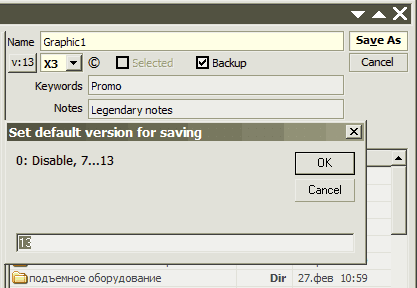
    Default version for saving setup (click v:>>)
    Notes/Keywords editing on save (click ©)
    Min/Max/Close mouse hiliting

  • May14
    closing by X fixed when in quicksearch editbox.
    closing maximized window - size & layout saved correctly now

  • May10: CorelDRAW 11 compatibility fixed

  • May 8: New options:
    Button pictures toggle
    Icons in folder pane toggling
    Coloring of files (cdr/image/folder) toggle

MacroInstaller :: MenuBar expanded

Now I have found how to make subMenu's visible for VBA macro so it's possible to use the MacroInstaller to add buttons inside submenus such as File, Edit, Layout, Bitmaps, etc.

to expand submenus: Click 'expand MenuBar' button


Download

wx_ImportWithName easy autotagger


Provides a way to import files retaining source name & path of the file in statusbar and object manager — just drag'n'drop files on the macro window, from any Explorer folder (do not use File-Import dialog)

  • hold Alt to ignore forceDpi, hold Ctrl to specify ForceDpi
  • Right-click the window to set options and lookup help
  • Screen position of macro window will be remembered.
  • StatusBar widths saving (rightclick the macro window), to make dpi visible in statusbar: remove 'HelpInfo' field, re-arrange 'ObjDetails' & 'ObjInfo' widths and position, enable StatusBar saving in rightclick macro menu

    Before:
    After:

Download

sameColorSelect + wx_TransparentEdge

SameColorSelect: sameColorSelect.exe


  • ColorSel.selectSameFillColor - selects objects with same fill color as current shape's
  • ColorSel.selectSameOutline - same outline color
  • ColorSel.selectSameFillAndOutline - same fill and outline colors
  • ColorSel.selectSameDialog - see picture
    invoke the dialog, set the options, further calls to selectSame... 1-click macros will use the settings


Transparent edge (vector / bitmap, 1 object, no groups): wx_TransparentEdge.exe


  • Live preview

AutoDPI for imported bitmaps (72dpi fix)

wx.setDpi - sets dpi value (without resampling) for bitmaps (selected/page)

wx.setDpiSetup - setup of automatic dpi setting for any imported bitmaps (0 = disable).

p.s. Installation routine enables VBA macros to initialize at DRAW's startup (thus providing the macro's behaviour immediately after launch of DRAW) by unchecking VBAdelayLoad option, available also in Tools->Options->VBA.

Download

ScatterToNewLayers updated

See also full package description

  • Updated ScatterToNewLayers: Shape names are used for new layers

Download